
Let’s tackle 4 - Setting Up Robocode 😀
Robocode Lab: Day 1 – Setting Up Robocode
Before we start programming robots, let’s make sure your environment is ready.
Step 1: Download the Starter Pack
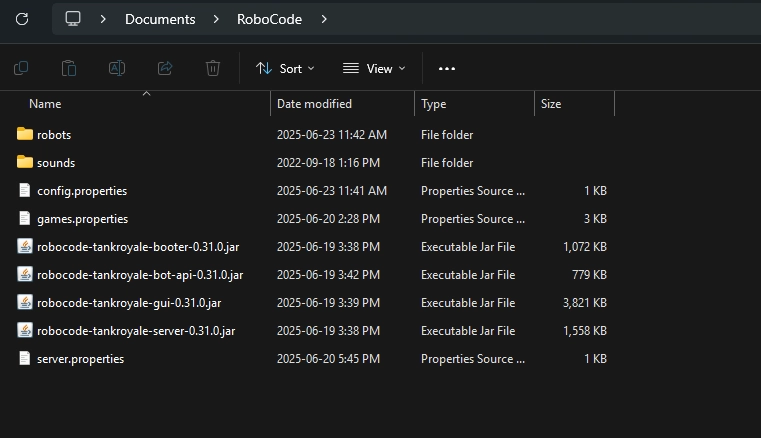
Download the ZIP file from Google Drive provided by your instructor. It contains everything you need to begin:
- Robocode application
- A workspace folder
- A starter Java robot template
📦 If you haven’t received the ZIP, ask your instructor or team lead.
Step 2: Extract and Open the Project
- Unzip the folder to your desktop.
- Windows: right-click and choose Extract All…
- macOS: double-click the zip file to extract.
- Inside, you’ll see a folder named
RoboCode. - Open your VS Code.
- Use File → Open Folder and select the
RoboCode/robots/MyFirstRobotdirectory on your desktop.
Step 3: Verify the Setup
- Open the Robocode application from the
robocodefolder.- Launch it by running
robocode-tankroyale-gui.
- Launch it by running
- In the Robocode window, go to Config → Bot Root Directories… and select your
robotsfolder. - Open the
robotsfolder in your editor — it should contain a file likeMyFirstRobot.java. - You’re now ready to write your first robot logic!
Having trouble? Check the Setup Troubleshooting guide.